TUFLOW FV Upgrade Python Package draft
Introduction
This page provides a guide on how to update to the latest Get tools and tfv python packages. If you are unsure if you have TUFLOW FV python toolbox (tfv) refer to Checking The TULOW FV Python Toolbox Environment. If you already have a version of tfv Get Tools or the tfv python toolbox installed after February 2026 and want to check for updates see the Upgrading Individual Python Packages – Post Feb 2026 section.
Checking The TUFLOW FV Python Toolbox Environment
Use the below steps to check if the tfv python environment has been installed on your machine.
- Launch Miniconda. If you do not have Miniconda installed refer to TUFLOW FV Python Environment to install the software and set up to the environment.
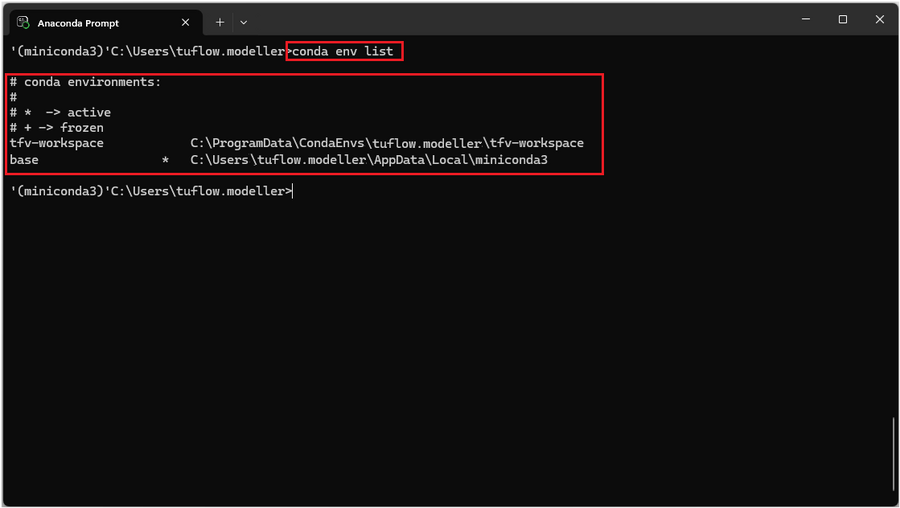
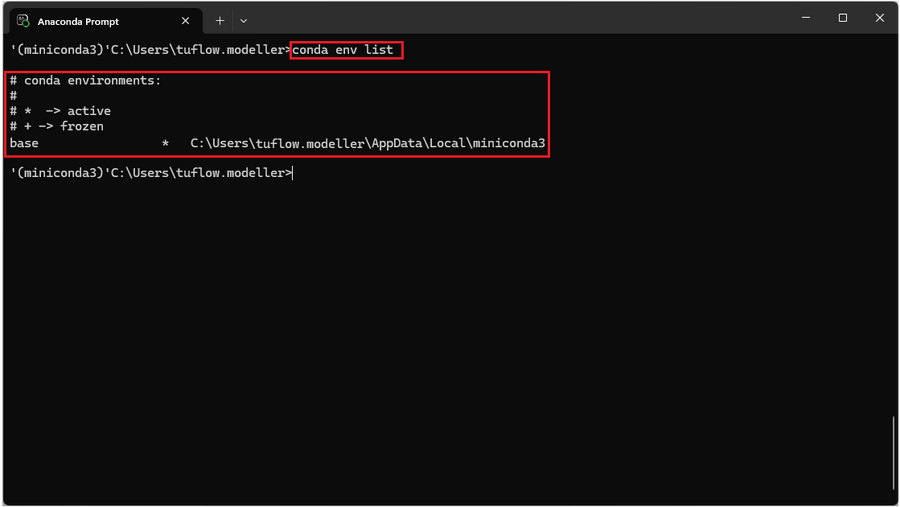
- To check if the tfv python toolbox environment has been installed enter:
conda env list
- If the the tfv-workspace is listed in the environment list (as shown in the figure) then the tfv python toolbox environment is installed. Proceed to checking Version Check Of Get Tools.

- If the the tfv-workspace is not listed head to TUFLOW FV Python Environment to install the tfv python toolbox environment.

Version Check Of Get Tools
Use the below steps to determine which version of Get Tools package has been installed via the tfv python package:
- 1. Activate the workspace by entering:
conda activate tfv-workspace
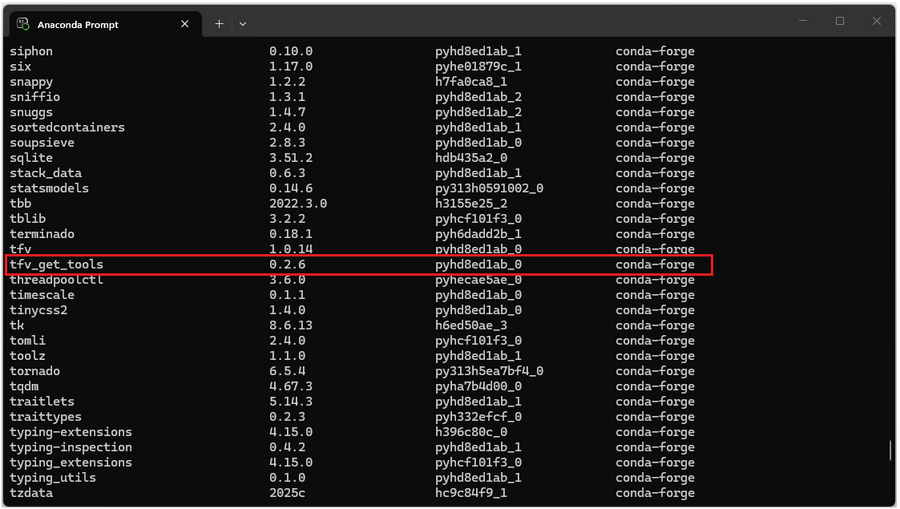
- 2. List the packages installed within the environment by entering:
conda list

- Scroll through the packages. If get-atmos, get-ocean, and get-tide packages are listed it indicates the old version of Get Tools (pre 2026) is installed. Go to Remove Old Get Tools And Install Latest TUFLOW FV Python Toolbox.

- If you find tfv_get_tools 0.2.6 or higher you have a version of Get Tools post February 2026. Go to Upgrading Python Packages.

Remove Old Get Tools And Install Latest TUFLOW FV Python Toolbox
Use the below steps to remove the tfv-workspace and install the latest tfv python toolbox environment.
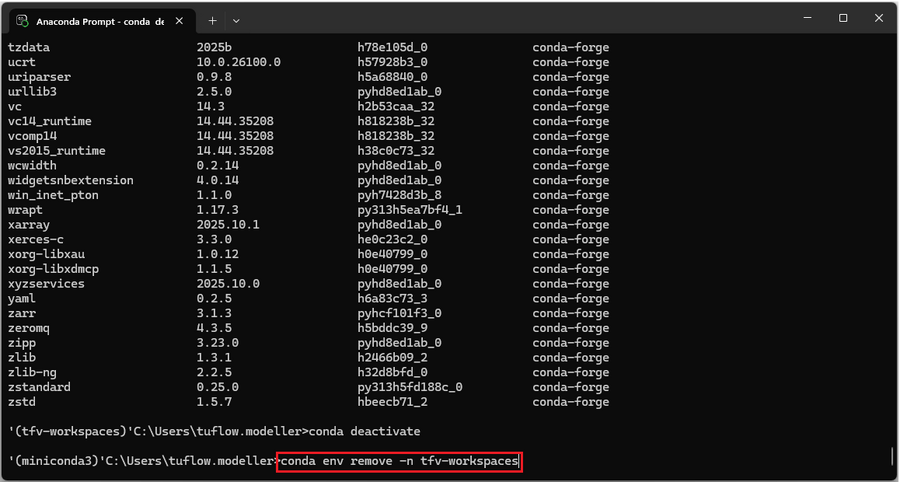
- 1. Deactivate the tfv-workspace by entering:
conda deactivate

- 2. Remove the tfv-workspace environment by entering:
conda env remove -n tfv-workspace
- When prompted type y to proceed with removing the environment.

- 3. Once complete check the environment has been removed by entering:
conda env list
- Check the tfv-workspace no longer exists in the conda environments.
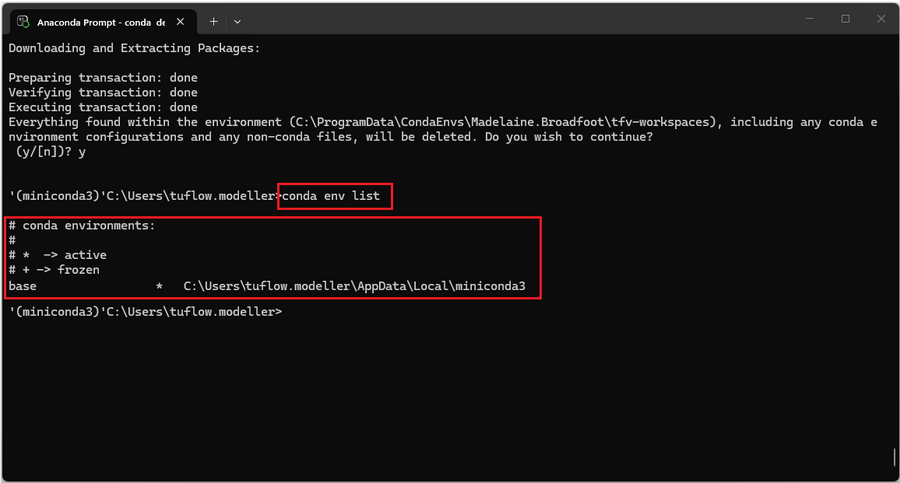

- 4. Go to Preparing The TUFLOW FV Working Environment to download and install the latest tfv python toolbox environment which includes the latest version of Get Tools.
Upgrading Individual Python Packages – Post Feb 2026
If the package has not been updated for sometime there may be a requirement to also update a number of dependencies.
- 1. In Miniconda activate the tfv-workspace using:
conda activate tfv-workspace

- 2. Check the installed versions of the tfv python toolbox and tfv Get Tools by entering:
conda list tfv*
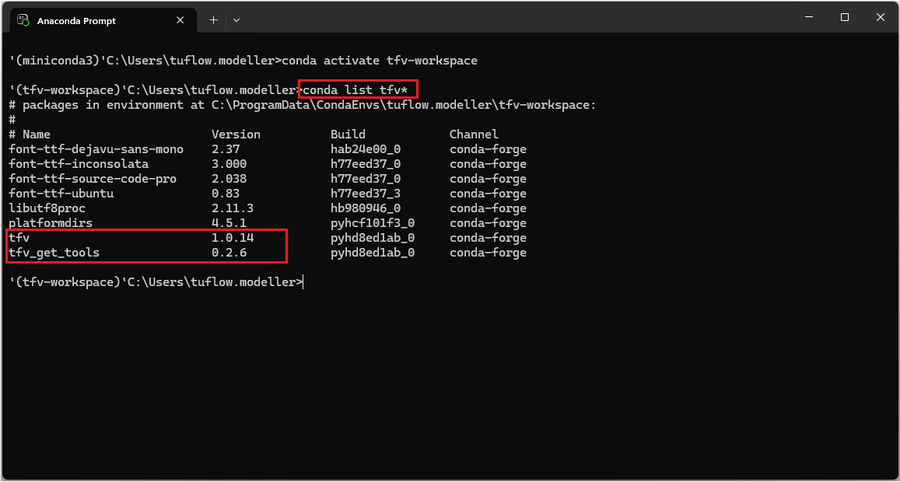
- 3. To check if new packages are available enter:

conda search "tfv*" -c conda-forge
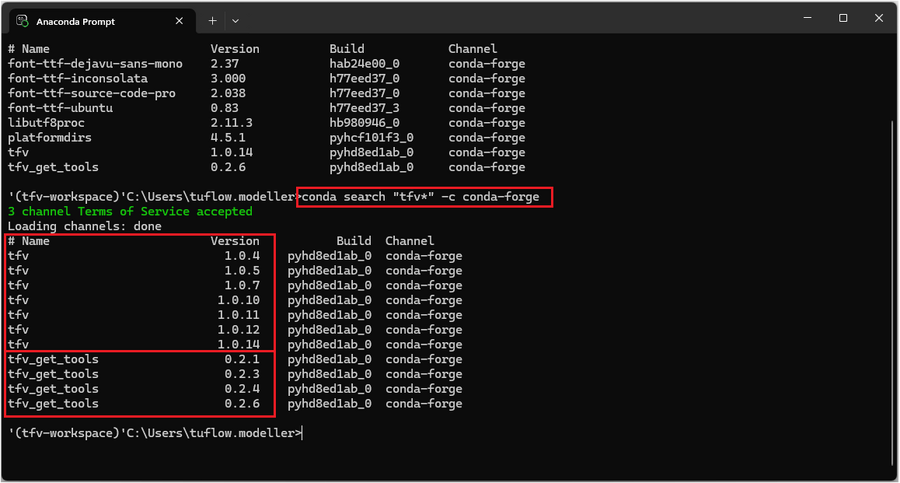
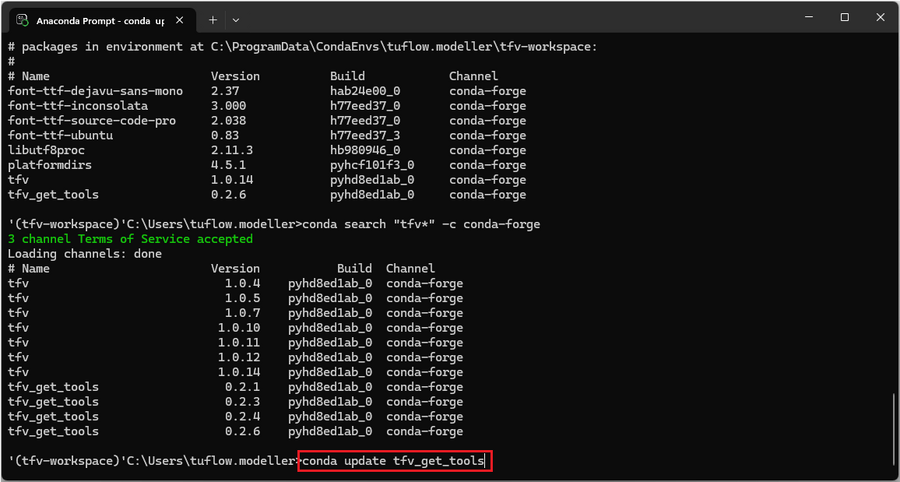
- 4. In this instance update the tfv-get-tools package by entering:

conda update tfv_get_tools
- When prompted type y to proceed.The update may take an moment to install. If after attempting to update the package it is prohibitively slow it may be more efficient to delete the environment and create a new one using the above process.

Conclusion
You should now be able to identify your installed environment, check your Get Tools version and update to the latest tfv python packages as required. This ensures your tools are current and ready for use with the latest workflows.
To learn how to use our other Python utilities visit our TUFLOW FV Python Toolbox. If you have any further queries, feedback or requests for new functionality feel free to get in contact with support@tuflow.com.